This is a long assignment, but that's mostly due to the amount that you have to read. For each problem, there's not too much you have to do, so don't be put off by it.
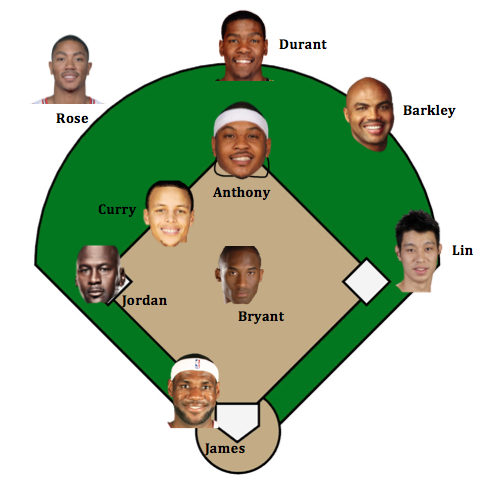
In class, we've talked about measuring a similarity or distance between a pair of senators. That distance is abstract. It represents how far apart the two senators are in the "space" of voting records. Now we'll consider a more concrete example in order to think about these distances.
Bad Sheet tab. It shows the September prices for two items (Bread and Rice) and how many of each item we bought, and then the cost of the items, which is computed as D3*B3 + D4*B4, i.e., the number of breads times the price of bread, plus the number of rices times the price of rice. That total is shown in cell B6.
Down below, we've got both September prices (copied from those above) and October prices, and a (correct) formula for the increase in price from September to October, which takes the total October cost, D3*C9 + D4*C10 and subtracts the total September cost, D3*B9 + D4*B10. Notice that we're using the costs from rows 9 and 10.
Change the price of bread in cell B3 from $2.35 to $2.50. You'll see the September cost go up. But the cell labelled "Increase" (D9) won't change at all. Look at the formulas and explain why in cell E12.
Good Sheet. On this one, things are a little clearer: the only places the person looking at this sheet should change anything are highlighted in yellow (with a note at the top explaining this). The September prices in rows 9 and 10 are not copied from rows 3 and 4, but rather are defined by formulas that refer to rows 3 and 4: when the price of bread in B3 is changed, the price in B9 automatically updates. Note, too, that all dollar amounts have been formatted to display nicely. (That was true of the "Bad Sheet" tab as well.)
The cells in this sheet can be divided into four classes:
BadBetterGood. On this one, the first two columns import Senator names as we did in class. The key formula, in cell B1, is =importXML("http://www.senate.gov/legislative/LIS/roll_call_votes/vote1132/vote_113_2_00008.xml", "//members/member/first_name")
You can see that the legislative session, the congress number, and the vote number are all in the url, and the numbers "113" and "2" appear twice. Someone wanting to see a list of senators for the first session of the 110th congress would have to do some careful editing of the URL.
Note that in this case, the senator names are "data", but there don't seem to be any parameters. To the degree that there are, they're hidden inside the importXML formula: the URL and the XPath.
Columns D and E do a better job. Once again the data you can change is highlighted. There are several well-named entries (like "Which congress"), and even the item to extract has been separated out into its own field.
There's a problem, though: the list of senators is missing.
If you look at the "Goal" entry, I've written down the thing you should be trying to produce in the URL entry (for the 113th congress, second session, anyhow). The formula I've used for the URL doesn't produce that, as you can see.
Modify the formula in E7 (you'll need several more ampersands and several more strings!) to make it exactly reproduce the "goal" URL. When you do, the Query results should appear.
Change the "Which session:" to "1". Does the right thing happen? What about if you change the congress to "110"?
The formula for the query is =importXML(E7,E5). That makes sense: E7 contains the URL, E5 contains the XPath. But we can do better.
=importXML(url,xpath)
H7, went to
Data > Named Ranges and named it "url"; I did the same thing with cell H5, naming it "xpath". After doing that, I'm allowed to refer to those cells by name rather than by letter-number coordinates. It makes the formula a good deal easier to read.
Change things so that instead of the member names being listed lower down in column H, their votes are listed. Was it easy?
Go to the ImportExamples tab of the spreadsheet. At the top is an example of performing a google search and using importXML to extract the data that was returned (i.e., all the web pages you could click on). The xpath part of the formula is more complex than anything we saw in class; it's
//h3[@class='r']/a/@href
Let's interpret that. The first part, //h3, says to search for anything with the tag h3, which is the style used to display results in a google search.
To see this, go to Google, search for "poodle", and when the results show up, note two things:
http://www.google.com/search?hl=en&gl=US&q=poodle h3 tag, with the attribute class="r"...which exactly matches the first part of that Xpath: that first part says "look for h3 tags with the class attribute equal to 'r'". The second part says "and within there, look for "a" tags, and tell me the value of the "href" attribute. It turns out that "a" tags are hyperlinks, and the "href" attribute is the URL for the linked page. (Note: these are the instructions for Google Chrome. If you are having trouble, try switch to Google Chrome.)
/a onwards isn't needed, because you want the actual contents of this entity, not the value of some attribute.
B19: we've used importHTML, which is a lot like importXML, except that it handles less structured webpages better (but does less with them). In this case, we've opened a webpage that lists incidents of piracy on the high seas, and said that we're looking for a TABLE within that page (we tried both "list" and "table", and "table" worked; we could have used the "inspect element" trick to save ourselves the trouble). We've said that we want the very first table (that's the "1" at the end of the formula), and the results show us several piracy incidents.
The sad thing is that it doesn't show as many as the webpage itself does. Web servers don't have to give the same result to Google Spreadsheets as they do to a browser, and this seems to be an example of that happening: we only get 8 results.
Below that, in cell B33, is a formula that should load up data from the national earthquake center...but their webpage's XML is broken, and Google's XML-reading program can't make sense of it.
Below that, in cell B35, is a formula for reading the low temperatures listed on the weather page for zipcode 02912; I found the URL by going to weather.gov and entering "02912" in the search box. I then figured out what to search for (i.e., the Xpath) by using "inspect element".
Change this so that cell B35 shows the current temperature instead of starting a table of low temperatures.
Finally, we want to check in and make sure you feel you're becoming comfortable with the ideas needed to do a successful spreadsheet project of your own.
Task5 tab and list two or more sources of data you might be interested in exploring in your project. Describe in your own words each data set in a few words and provide a link. If you can't find sources yet, that is okay: instead, briefly describe two or more kinds of data you might be interested in exploring (e.g., votes, education, some kind of survey data). Write your answers in A2 C2, please rate how you feel the class is going so far:
E2.Share the following files with cs0931handin2014@gmail.com
FirstLast_HW1-2In the above file name, "FirstLast" should be replaced with your first and last name. Make sure every task has been completed.